
A launch in six chapters · Windows 11 and 10
Beyond the browser tab: AI on Windows.
Ace installs like any Windows app and waits until you hold Ctrl + Shift. Ask about the document, error or email in front of you and hear the answer.
The live web platform
The platform, on stage
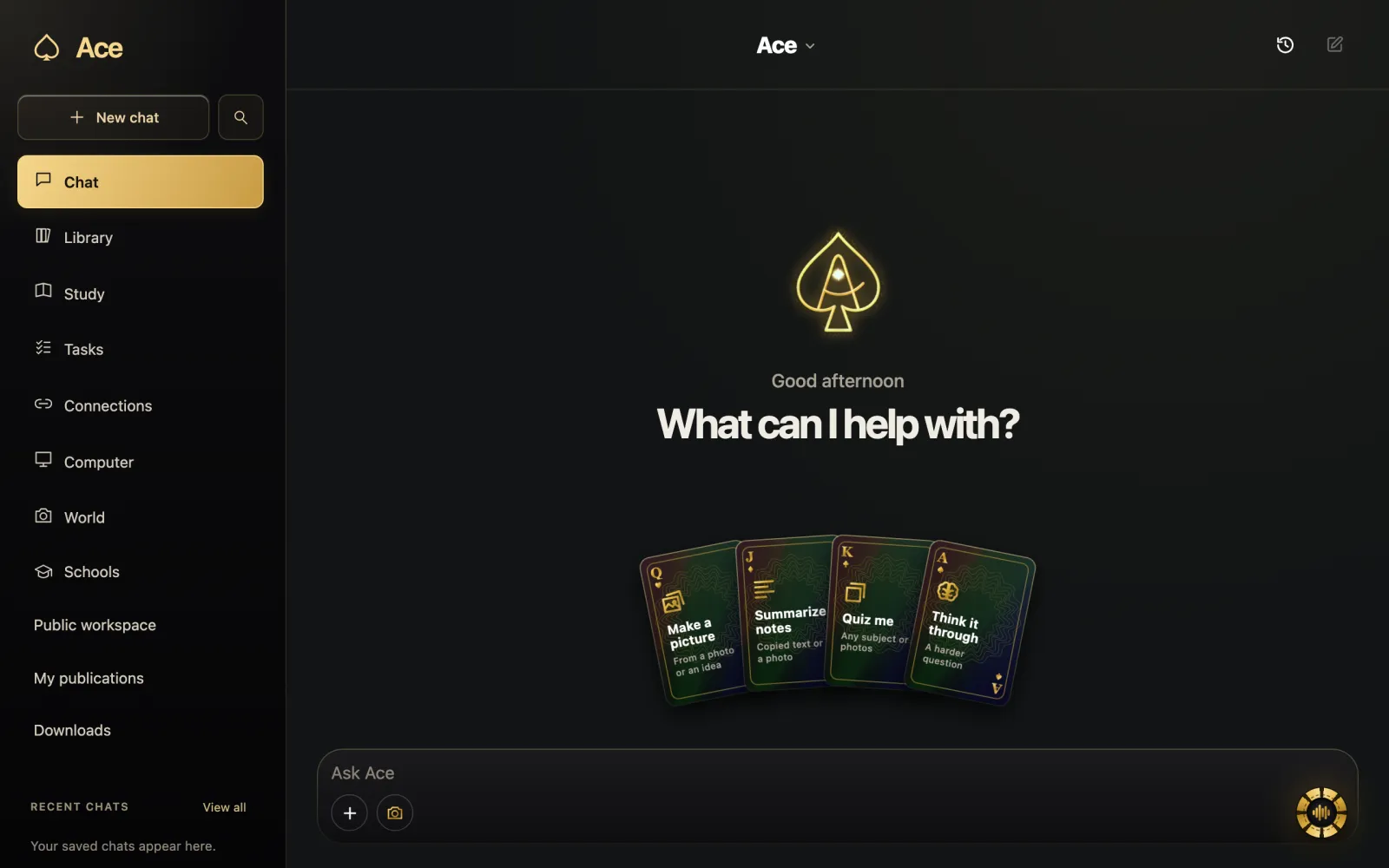
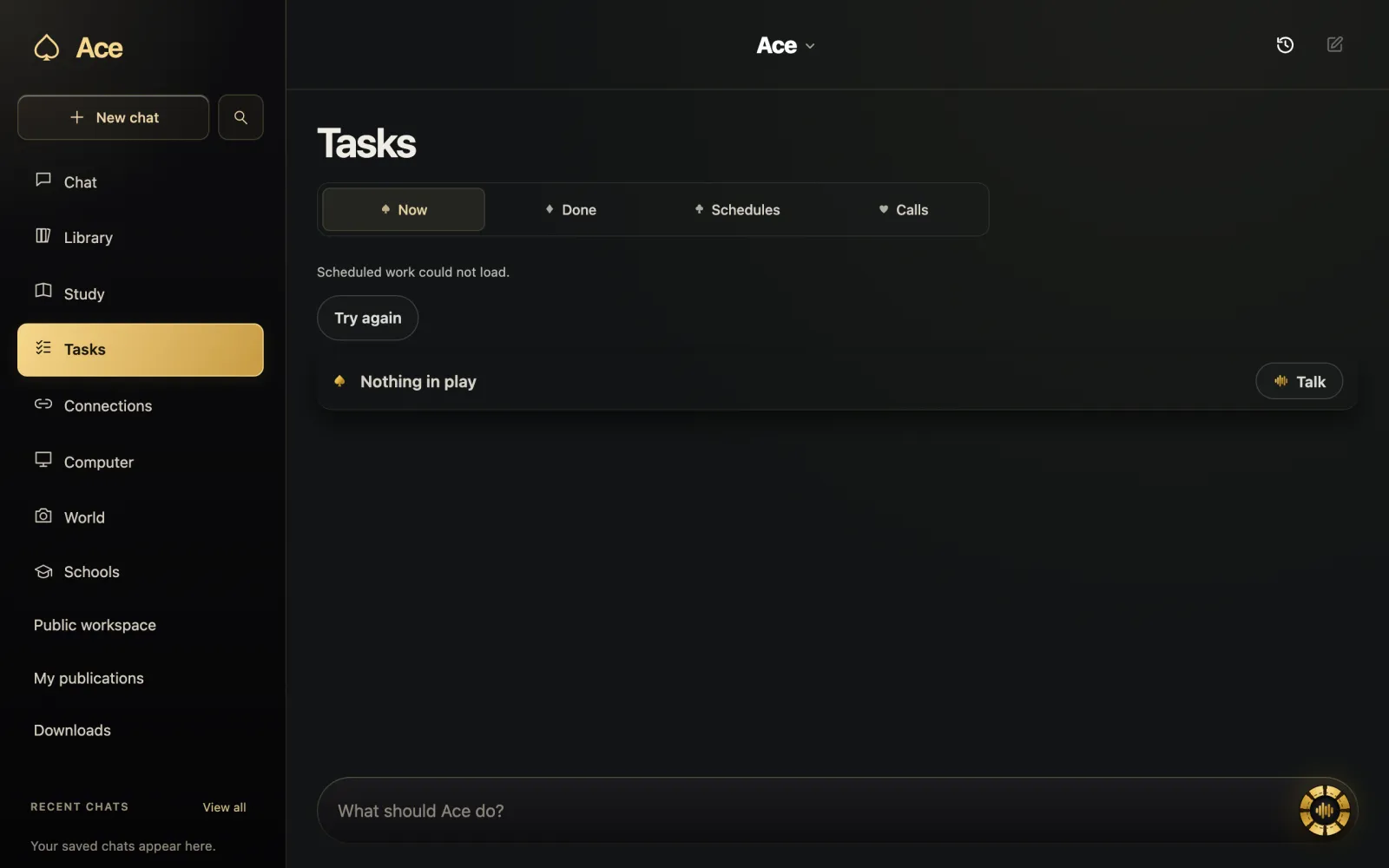
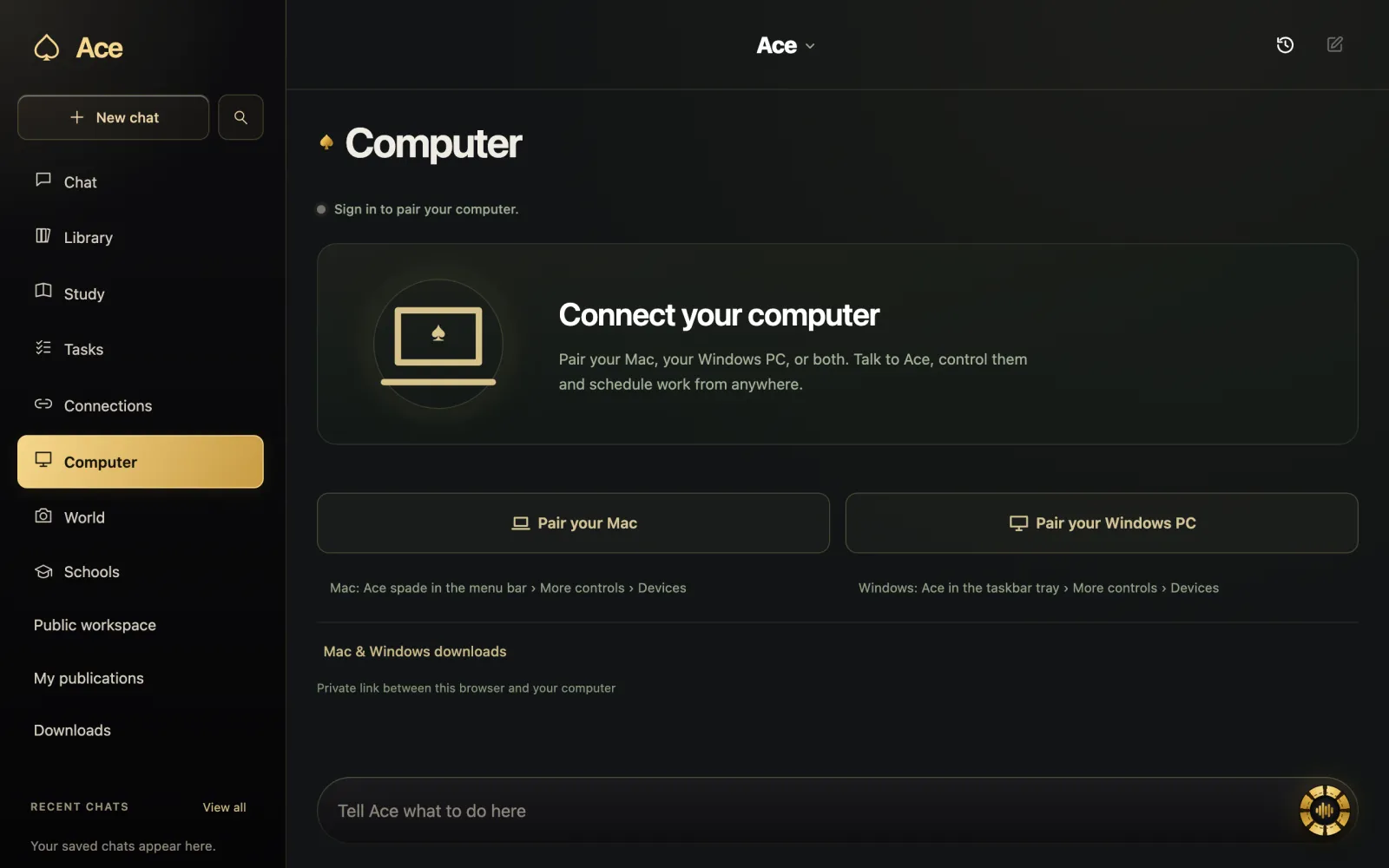
Ask Ace, Tasks and Computer in the live Ace workspace: not a mock-up, captured from tryacee.com on October 27, 2026.
Chapter 01 The setup
Three steps. About five minutes.
Make a free Ace account
Free Play: 2,000 credits, no card needed. Sign up with Google or your email.
Install Ace on your PC
Choose Windows in your account and run the installer. Releases are published with their file fingerprints.
Hold Ctrl + Shift
Say or type the question. Let go, and Ace answers out loud beside the app you are in.
Chapter 02 Before, and with Ace
The same Windows PC. A different afternoon.
| On your PC | Before | With Ace |
|---|---|---|
| An error dialog appears | Copy the message, open a browser, paste it into a search, switch back and forth. | Hold Ctrl + Shift and ask what it means, with the dialog still open. |
| A setting you cannot find | Click through page after page of Settings, hunting for the right switch. | “Walk me through this settings page step by step.” |
| A long PDF | Scroll and skim it yourself, hoping you caught the part that matters. | “Summarise this PDF in five bullet points.” |
| A box on a form | Guess, or search for what the field is asking. | “What should I write in this box on the form?” |
| An email to write | Start from a blank message. | Give Ace the facts; review its short draft, then send it yourself. |
| Getting the answer | Read it in yet another window. | Hear it out loud, in Ace’s own voice. Typing still works. |

Chapter 03 A first workflow
A first AI workflow on Windows: draft an email
A short draft is an easy first task because you can judge the result before using it. Start with a few notes instead of an entire mailbox.
Give it the facts
Write the purpose, recipient, date and the outcome you want. Leave out private details the draft does not need.
Set the brief
Try: “Turn these notes into an email under 120 words. Keep the date and price exactly as written. Ask me about missing facts instead of inventing them.”
Review before sending
Check the recipient, dates, attachments and any promises. Ask for a shorter or warmer version if needed, then put the reviewed draft into your email app.
Writing a draft and sending an email are separate actions. Keep the final decision with you, especially for pricing, commitments and customer messages.
Chapter 04 Your controls
Every permission is yours to switch off.
Ace looks at your screen only when you ask, after you allow screen access; you can switch it off at any time. Ace only uses the microphone, screen, files or app control you allow through Windows’ own prompts.
Microphone
Settings › Privacy & security › Microphone. Turn on Microphone access and Let desktop apps access your microphone, then hold Ctrl + Shift and talk.
Screen
Ace looks only when you ask, after you allow screen access. Only what you choose goes with the request.
Files
Shared through a Windows permission prompt when you choose, and can be turned off again.
App control
On Windows, app control stays off until you turn it on.
Chapter 05 The price
Zero dollars to start.
2,000 free credits. No card required. One balance for your computer, phone and the web.
Try Ace freePaid plans and top-ups (8)
| Plan | Per month | What it includes |
|---|---|---|
| Table Pass | $20 | Connect your own supported AI subscription. |
| Pocket Pair | $30 | 10,000 hosted AI chips per month. |
| Full House | $50 | 30,000 hosted AI chips per month. |
| Private Table | $75 | Connect your own supported AI subscription. |
| High Roller | $100 | 60,000 hosted AI chips per month. |
| The House | $200 | 100,000 hosted AI chips per month. |
| Starter top-up | $10 | 5,000 chips, one time |
| Reload top-up | $50 | 20,000 chips, one time |
Prices in USD, from tryacee.com/pricing. Subscriptions renew until canceled. Compare every plan
Guides on this site
- How to get AI on Windows 11Where AI already is in Windows 11 and how to open it: Copilot, voice typing, live captions, Snipping Tool text, Copilot+ PC features, and the apps you can add.
- How to use AI on Windows 11Practical ways to use AI in Windows 11: find files by describing them, summarize documents, change settings in plain words and act on text on your screen.
- Can I get AI on Windows 10?Yes, AI runs on Windows 10: Copilot, Microsoft 365, Claude, Gemini and Ace support it. What stays Windows 11 only, and how to stay secure after support ended.
- How to use AI to write Excel formulasGet AI to write, explain and fix Excel formulas: describe your sheet clearly, use Copilot in Excel or another assistant, and test the result before trusting it.
- How to write emails with AI in OutlookDraft, rewrite and summarize email with AI in Outlook for Windows: Copilot’s Draft and Coaching, other assistants, a free reply writer and a check before Send.
- How to get AI to explain a Windows error messageTurn a confusing Windows error into a plain explanation: capture the exact text and code, ask AI the right way, and check its fix against Microsoft’s own pages.
- How to turn off Copilot in Windows 11Uninstall the Copilot app, remap the Copilot key, hide it in Edge, switch it off in Word and Excel, and the policies for business PCs, as Microsoft documents.
- All guidesEvery guide on this site in one list, with reading times.
Featured guides & AI tools
Chapter 06 Questions
Questions about AI on Windows.
What do I need to set up AI on Windows?
A Windows 11 or Windows 10 PC, an internet connection and a free Ace account (Free Play: 2,000 credits, no card). No new PC or special hardware: the AI is hosted, so asking needs a connection.
Where is the Windows microphone setting?
Settings › Privacy & security › Microphone. Turn on Microphone access and Let desktop apps access your microphone, then hold Ctrl + Shift and talk.
What if the shortcut does nothing?
Open Ace first. Then hold Ctrl and Shift together while you speak or type, and let go when you are done; Ace answers out loud.
Can I undo a permission later?
Yes. Microphone, screen, files and app control each go through Windows permission prompts and can each be turned off again. On Windows, app control stays off until you turn it on.
How do I get AI on Windows 11?
Install an AI assistant app. With Ace: create a free account at tryacee.com, download the Windows installer from your account, open Ace and hold Ctrl + Shift to ask.
How do I use AI on my Windows laptop?
Open the thing you need help with, hold Ctrl + Shift and ask Ace about it. It can explain, draft, summarise and keep notes.
Can I type instead of talking?
Yes. Hold Ctrl + Shift and type, or talk. Both keep the same conversation going, and Ace can read its answer out loud.
Is AI on Windows free with Ace?
Free to start. Free Play gives you 2,000 credits with no card. Monthly plans start at $20 and one-time top-ups at $10.
What keyboard shortcut opens AI over any app on Windows?
With Ace installed on Windows 11 or Windows 10, hold Ctrl + Shift from inside Word, Excel, your browser or any desktop window to speak or type your question without switching tabs. Ace answers out loud and only checks a single screen frame when you ask and allow Windows screen permission.

See what comes next on your PC.
Free Play: 2,000 free credits, no card.
Try Ace free