How to write emails with AI in Outlook
With an eligible Microsoft 365 plan, open a new message in Outlook for Windows, select the Copilot icon, choose Draft, describe what you want and generate it; then adjust the tone or length and keep the draft. Without Copilot, give any assistant the facts, the reader and the tone, and paste the result in. Either way, check names, dates and promises before you send.

Free Play: 2,000 credits, no card. Ace by Black Label.

Draft with Copilot in new Outlook
- Select Home > New mail.
- Select the Copilot icon above the message, then Draft.
- Type what the email should say, or edit a suggested prompt, and select the Generate arrow.
- Use the dropdown to change the length or tone, or edit the prompt and generate again.
- Select Keep it, edit the draft yourself, then send it.
Draft with Copilot doesn’t work on plain-text messages in new Outlook. Switch the message format to HTML in Outlook’s Compose settings under Settings > Mail.
In classic Outlook
Select Home > New Email, then the Copilot icon and Draft with Copilot. Type the prompt and select Generate. Adjust lets you choose a different tone or length, Regenerate starts over, and Keep places the draft in the message for you to edit and send.
Coaching and summaries
Coaching by Copilot reviews a draft you wrote yourself. Write the message, select the Copilot icon and choose Coaching by Copilot for suggestions on tone, clarity and how the reader may feel, then apply them all at once or one at a time.
For a long thread, open it and select Summary by Copilot at the top; the summary can include numbered citations back to the messages. New Outlook can also summarize PDF, Word and PowerPoint attachments.
These features come with Microsoft 365 Personal and Family (using AI credits), Premium, and eligible business plans. Copilot doesn’t work on signed, encrypted or rights-protected email.
New Outlook or classic Outlook?
New Outlook for Windows is Microsoft’s redesigned app. Classic Outlook has a Try the new Outlook toggle in the top-right corner, and you can go back by turning the toggle off or choosing Help > Go to classic Outlook. Microsoft says existing classic installations are supported until at least 2029, and both versions offer Draft with Copilot.
Without Copilot: a request that gets a usable draft
Give the assistant the parts it can’t guess:
- Who the reader is, and how well you know them.
- What you want to happen after they read it.
- The facts: dates, amounts, names, what was agreed.
- Tone and length, such as “friendly, under 100 words”.
Example: “Reply to Dana, a client I’ve worked with for a year. Say Friday works for the review but not before 2 p.m., and ask her to send the latest figures by Thursday. Warm, three sentences.”
A free reply writer, and a voice option
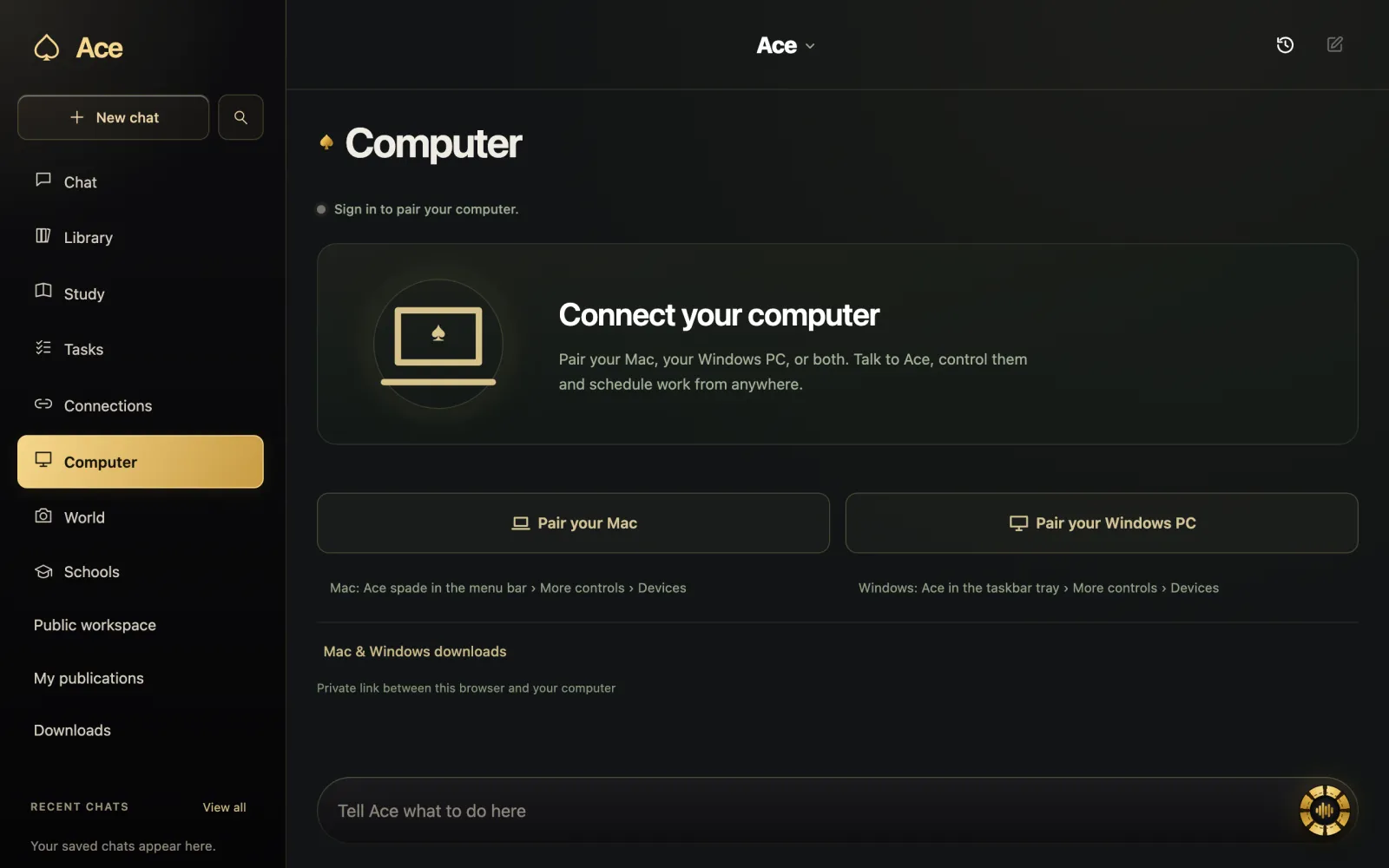
Ace, made by the team that publishes this guide, offers two more routes. Its free email reply writer on tryacee.com writes five replies a day with no account: paste the email you got, say in a few words what you want to answer, and pick a tone. It doesn’t send anything, and what you paste goes to the AI only to write the result and isn’t saved. In the Ace app, open the email in Outlook, hold Ctrl + Shift and say “help me answer this”; Ace reads the email on your screen and drafts the reply out loud.
Before you press Send
- Names, dates, times and amounts match the thread.
- Nothing is promised that you didn’t decide: refunds, discounts, deadlines.
- Any [bracketed] blanks are filled in.
- Attachments the email mentions are actually attached.
- The recipients and the Cc line are right.
More from Ace
The full overview of Ace for Windows is on tryacee.com/windows-ai-assistant.
Also asked
Is Copilot in Outlook free?
No. It comes with Microsoft 365 Personal and Family (using AI credits), Premium, or an eligible business plan; Personal costs $9.99 a month in the US.
Why don’t I see the Copilot icon in Outlook?
Check that your plan includes Copilot and that you’re signed in with that account. In new Outlook it won’t draft plain-text messages, and it doesn’t work on signed or encrypted email.
Can I dictate an email in Outlook?
Yes. Click into the message and press Windows key + H to use Windows voice typing, or hold Ctrl + Shift in Ace and describe the reply you want.
Does AI send the email for me?
Not with these tools: Copilot leaves the draft for you to send, and Ace’s reply writer only writes the text.
How do I draft an email with Copilot in new Outlook for Windows?
Select Home > New mail, then the Copilot icon above the message, and choose Draft. Type what the email should say, or edit a suggested prompt, and select the Generate arrow. Use the dropdown to change the length or tone, select Keep it, then edit the draft yourself before you send it.
Does Draft with Copilot work in classic Outlook?
Yes. Select Home > New Email, then the Copilot icon and Draft with Copilot, type the prompt and select Generate. Adjust changes the tone or length, Regenerate starts over, and Keep places the draft in the message for you to edit and send. Microsoft says existing classic installations are supported until at least 2029.
What does Coaching by Copilot do in Outlook?
It reviews a draft you wrote yourself. Write the message, select the Copilot icon and choose Coaching by Copilot to get suggestions on tone, clarity and how the reader may feel, then apply them all at once or one at a time. It comes with Microsoft 365 Personal and Family (using AI credits), Premium and eligible business plans.
Can AI summarize a long email thread in Outlook?
Yes, with Copilot. Open the thread and select Summary by Copilot at the top; the summary can include numbered citations back to the messages. New Outlook can also summarize PDF, Word and PowerPoint attachments. Copilot doesn’t work on signed, encrypted or rights-protected email, so those messages won’t get a summary.
What should I include when I ask AI to write an email for me?
Give it the parts it can’t guess: who the reader is and how well you know them, what you want to happen after they read it, the facts such as dates, amounts, names and what was agreed, and the tone and length, such as “friendly, under 100 words”. Then paste the result into your message.
Is there a free AI reply writer I can use with Outlook?
Yes. Ace’s free email reply writer on tryacee.com writes five replies a day with no account. Paste the email you got, say in a few words what you want to answer, pick a tone, and paste the reply into Outlook. It doesn’t send anything, and what you paste goes to the AI only to write the result and isn’t saved.
Can Ace see the email I have open in Outlook?
Yes, in the Ace app once you have allowed screen access. Open the email in Outlook, hold Ctrl + Shift and say “help me answer this”; Ace reads the email on your screen and drafts the reply out loud. It looks at your screen only when you ask, and writing a draft and sending an email stay separate actions.
What should I check before I send an email AI drafted?
Check that names, dates, times and amounts match the thread, and that nothing is promised you didn’t decide, such as refunds, discounts or deadlines. Fill in any [bracketed] blanks, make sure attachments the email mentions are actually attached, and confirm the recipients and the Cc line are right.
More questions
Deal yourself in.
More about Ace
Sources
- Draft an email message with Copilot in Outlook | Microsoft Support, Microsoft Support. Checked November 14, 2026.